May 19

With the miracles of modern technology, this morning at 35,000ft I was able to get a full install of Fedora Core 3 running on my new laptop under Virtual PC. This Inspiron 9300 I got is nothing short of amazing- i tricked it out w/ 2 GB of RAM earlier this week and w/ the 2.0 Pentium M chip, this thing just smokes. Hats off to Virtual PC too – this program is amazing, software that can emulate a machine to the point where the installed OS THINKS it’s running on a real box. I got to thinking about the possibilities of virtual pc’s running other virtual pc’s but it became a bit too “malkovitch malkovitch” in trying to grasp the existential implications of this type of virtual recursion so I let it go and screw around with linux instead.

The Fedora install is part of a larger goal I have right now of getting Subversion source control running first locally on my laptop and then on my buddy’s linux box. I will say that getting Fedora on VPC is not without its headaches- first you gotta get the ISO’s which are a full 2.3GB in all. I found this torrent tracker hosted at Duke University and was able to use BitTorrent to get about 250Kbps on my cox@home connection. Once you have the ISO’s, you can walk through the wizard for creating a new virtual machine in VPC. You then use the CD > Capture ISO option to fool the virtual machine into thinking it’s got the CD-ROM in its drive. So far so good- the rest of the Fedora install is very clean and they have a nice GUI wizard interface to customize it for your needs. There is one major hack however you must apply to the kernal in order to get it to recognize your monitor. The first time I went through it, it installed flawlessly but when I rebooted it threw an error saying “ID 2 Respawning too quickly – shutting down for five minutes.” After some serious digging in various forums I found this post that contains the necessary set of instructions (56 individual steps in all) to get it to work (and I can confirm that it does in fact work). The crux of the issue apparently stems from the OS’s inability to recognize the monitor of a virtual machine, you have to explicitly set this using some linux commands and installing a kernal modification. Once that was done, the intstall worked perfectly.

On another note, tomorrow is my brother’s wedding. I’m sitting here in my room at the Marriot in Monterrey watching seagulls out my window (which is an absolute novelty for us Arizonans) and trying to come up with a creative slideshow that will embarrass the hell out of him at the rehearsal dinner tomorrow night. I snapped this pic on my treo and stored it to the SD card:

What’s cool is my laptop has a built-in SD reader so transferring pics is simple- you pop in the card and it runs a quick sync tool and maintains a folder on your harddrive called PalmOne that has everything your card has. From my room I can see no less than twelve separate wireless networks on my laptop (about half of which are unencrypted) but apparently all have mac address filtering turned on or are just too weak a signal as packetloss is about 75%. I have this nifty program called PDAnet for my treo that turns it into a modem for my laptop. It gets decent speeds too (about comparable to a 56k modem) and I hear the Sprint network can do about twice that (I’m on Cingular). Anyways, I will definitely post my experience in getting Subversion to work as it seems like quite a process from their site. Looking forward to this weekend. In a span of three weeks it’s been Connor’s bachelor party, followed by my 30th b-day, followed by his wedding – June is shaping up to be a month of detox for sure!
May 05

Here’s a simple trick for any ColdFusion developers working on windows and running a development server on their machine to make your system run faster when you’re not developing.

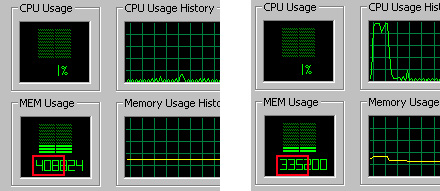
If you are like me then you are running a webserver, an app server and a database on your laptop while you’re developing from an IDE. But this is only when you’re developing- at least 70% of the time you boot up your system, you’re not doing development work at all. The resources consumed by your app server, your web server, your database server and all the pre-requisite services on my machine for instance take up about 70MB of RAM. Since I currently only have 512MB to work with, that’s a significant chunk of my machine’s memory resources that 70% of the time is allocated to services that I’m not even using, making whatever else I’m doing (3d modeling, multimedia, browsing) 15% slower than it should be! Turn the developer-specific services to “manual” by default in your services control panel and then use these two simple batch scripts to start and stop all development-related services when you need to put on your developer hat:

<!— WebStart.bat —>
net start “World Wide Web Publishing Service”
net start “Simple Mail Transport Protocol (SMTP)”
net start “FTP Publishing Service”
net start “IIS Admin Service”
net start “ColdFusion MX Application Server”
net start “ColdFusion MX ODBC Agent”
net start “ColdFusion MX ODBC Server”
net start “MySQL”
<!— WebStop.bat —>
net stop “World Wide Web Publishing Service”
net stop “Simple Mail Transport Protocol (SMTP)”
net stop “FTP Publishing Service”
net stop “IIS Admin Service”
net stop “ColdFusion MX Application Server”
net stop “ColdFusion MX ODBC Agent”
net stop “ColdFusion MX ODBC Server”
net stop “MySQL”

And you can easily customize the scripts to add other services, just open up your services panel and get the name from there.
The ideal setup (and I’m moving to this method) is to add a crapload of memory and run something like virtual PC and have an entire environment that mimics your production server and do your development there. That way you can create a “throw-away” space to work with, break it all you want and then just copy the single file that contains the environment to clone it and start again. For the resource-thrifty developer on a budget though, this trick can greatly improve your system performance when you’re not developing.

On a completely unrelated note- big shoutout to Neil and Sara for their recently-released Technolawyer Blog. It’s actually more of a track-back since they were kind enough to publish my Sentinel Article that didn’t make Law Office Computing’s magazine. If you’re in the legal technology consulting industry, then you’re familiar with Technolawyer. It’s a top-notch newsletter aggregating peer-reviewed posts by experts on topics of technology for lawyers. .

Apr 24

There was a recent discussion on our CF User Group list that regarding a general purpose form generation tool that could store form definitions in XML and be used to abstract the form logic and circumvent the tedious process of writing forms. I for one HATE writing forms- it’s just one step above cleaning the bathroom on my list of “mindless, repetitive yet necessary annoyances.” So basically I had this same idea a couple years ago to distill the logic of forms down to the critical portions that change from instance to instance and then write a very simple message format and engine for storing form definitions in XML and then rendering them to a browser. I called this project Instaform and from the recent renewed interest in this technique on the AZCFUG list, I have dug up the code and made it freely available here.

A couple things:
Just for background, the birth of this concept for me came after I had played around with a tool that was used to develop a Macromedia developer survey I had taken. The tool InfoPoll.com’s windows client for creating surveys that could be hosted on their site. At the time I was sick of writing forms and facing the need to make a ton of forms for various projects I had while working for Act.com. I was also reading a book on design patterns. that gave me this whole idea for “encapsulating the variation” in systems. When I used the Infopoll client, it made me realize that form elements are really just different variations of the same class and that surveys are composed of questions and common form object blocks which consist of these elements. Adding new elements was just a matter of writing the necessary “handlers” for displaying them. The result was some tinkering that lead to Instaform. I have since seen a better implementation of the same idea called Facile Forms which is really worth checking out if you’re serious about this stuff. Facile Forms is an add-on component to the php-based Mambo framework (i know i know, not cf…) and it achieves the same thing as InstaForm plus some added advantages like:
-a nice GUI for administration
-extensible validation scripts
-automatic handling of the database logic for storing responses
-a slick mechanism for sharing and deploying forms via XML
-positioning information to place the form elements where you want
-support for multi-step “wizard” forms

Feel free to try out InstaForm – if it gives you an idea you can use, great. I made this same disclaimer on the azcfug list:
1. it was pre-cfmx when it was written and therefore did not make use of cfc’s and the cfxml tags since they did not yet exist. Instead it relied upon a tag from SiteObjects called “soxml” that was a wrapper for the MSXML com object that parses XML.
2. I haven’t actually tested it since 2002 so the code may need tweaking to work
3. I don’t see what harm could come from playing with it, but I suppose I need to make the standard “use at your own risk” disclaimer and I’m not responsible if something breaks.
What would be really cool is if someone would port the Facile Forms component to ColdFusion and sell it as a mini-app or customtag. Anything to eliminate the tedium of forms is money well-spent.

Tagged with:
Apr 17

You know how every once in awhile you’ll get asked a question that catches you completely off-guard because its simplicity demands a straightforward answer and yet none exists? I was meeting with the partners of a small company for a web project I’m doing the other day and one of the partners (who’s quite a bit older) asked me point-blank, “Sean- how do you know how to do all this stuff?” I considered for a moment launching into an explanation of RSS feeds and blogs, webinars, listservs, etc and then realized this is someone who doesn’t even use email, much less the more advanced communication channels of the internet. In the interest of not filling this guy’s head with a bunch of foreign technical jargon, I opted for the abridged explanation of “I’m self-taught.” But then I got to thinking that I have been asked the same question before by younger comp-sci majors who are moving into the field and I figured it warranted an attempt to break it all down and explain the guts of how we in the software industry learn what we know. This will be beneath other developers that happen to be reading this but here goes:

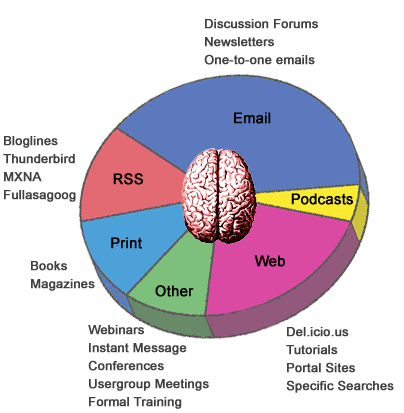
There’s a ton of ways to come at this explanation but I thought a useful perspective would be to break it down by communications channel (Of course there is no substitute for getting your hands dirty and actually playing with a technology yourself). Our attention is a limited resource that can only be divided amongst so many sources in a day. Given this limitation, how then is the best way to allocate our brain cycles in order to solve our complex problems, keep up with the latest technologies and methodologies and at the same time remain sane, human and happy? Having spent over seven years in the web app development industry I’ve knitted together a system which works well for me and incorporates about eight different mediums. Broken down by order of time allotment they are:

  • Email – Undoubtedly the majority of my time is spent reading and writing emails. It may be unthinkable to some but I conduct all my email through a web interface using Gmail for work and Yahoo for personal email. Gmail is great for listservs and newsletters because of Google’s options for applying labels, filtering messages and threading conversations. Email encompases all list exchanges, newsletters and one-to-one personal communications with other developers.
  • Web – Web browsing accounts for the next chunk of knowledge input and consists generally of highly-specific google searches for various error codes and phrases that usually lead to someone’s forum post on how they dealt with the exact same problem. I also use web to browse vendor’s sites and read developer zone tutorials and announcements they publish on their products. When I come across a helpful tutorial or refernce page I’ll bookmark it and come back to it later. There are a couple news sites I read regularly including Google News, Wired, Slasdot and Boing Boing. Del.icio.us is a recent gem I’ve found that uses social bookmarking to show what other people find useful. Technorati is supposedly the next greatest thing for unearthing information found in blogs but I haven’t caught that bug yet.
  • RSS – “Really Simple Syndication” or what Firefox calls “Live Bookmarks” is huge part of my daily reading and allows me to monitor the ramblings of people I feel are wise and worth listening to. Rather than checking a bunch of sites regularly, I can subscribe to certain authors and the new content comes to me. I have a two-tier system to “triage” the various blog postings that I follow. I use Bloglines to aggregate a bunch of feeds and skim through the material for key stories of relevance. If a particular feed on bloglines has consistently high-quality information and the user comments are insightful and complement the authors post, I promote the feed to my Thunderbird RSS reader. Unlike Bloglines, Thunderbird doesn’t strip the formatting and it leaves the user comments inline with the post.
  • Print – As high-tech as this world gets there will always be a place for paper and ink publications. Even in the face of downloadable ebooks and the promise of high-res ePaper, there is simply no substitute for having a reference book or a glossy magazine which you can leaf through, dog ear and pass along to friends. Finding the best books on a subject is usually a matter of asking around on a discussion list or reading Amazon reviews. I only subscribe to one magazine personally, though I read a couple others at my office like Law Office Computing and Law Technology News. Amazon recently added a concordance feature to their book reviews which could make an interesting way to thin-slice a book for its contents.
  • Podcasts – I was a skeptic of the podcasts at first thinking “I can read this faster than I can listen to someone else talk about it,” but things like tone of voice, personality and emphasis just do not come through in an article. Think of podcasts like syndicated talk radio that you can subscribe to. I’m a big believer in cross-training and variety and I have found that listening to a few podcasts from ITConversations is a great way to stay ontop of new trends, get to know the voices in the industry and hear the authors that I read actually talking about their own books. This is the relative newborn for me having only discovered podcasts in the last couple months but I am appreciative of this channel because it lets me attend virtually the conferences that I couldn’t otherwise.
  • Webinars – These are generally live product demos you get delivered via WebEx or Breeze. Think of it like someone giving you a presentation on a projector only it’s projected over the web to your computer and can incorporate interactivity like chat and desktop sharing. Comparitively I spend only a sliver of my total time in webinars (maybe one or two a month) but I have gained massive insight from a few webinars so I wanted to make sure they were included in this list.
  • Conferences, Usergroups and Instructor-led Training – Much like paper publications, face-to-face interaction will always have its place in learning in the IT industry. Anyone who neglects the value of a dialogue with a teacher in person or shooting the shit with other developers over a beer is sadly deficient in an important element of this field. Conferences and Training can be expensive investments but usually have unforseen dividends that come in the form of personal connections that are established and continue well after the event. Usergroups are free and a great place to get a monthly barometer of what other fellow developers are doing and to launch into peripheral discussions about xboxes and other topics that are important to developers.

So that’s the “quilt of info channels” that keeps me warm in this industry. Ultimately, it’s playing with blocks first-hand and discovering through trial and error how things work that matters most. Jean Piaget’s model of assimilation and accomodation resonates for me as being a very simple yet helpful way to understand the way we understand. What did I forget? How do you learn what you know how to do?

Apr 12

Here’s a random smattering of cool tools I’ve recently run across. In no particular order…

del.icio.us is a social bookmarking tool that let’s people collectively share their bookmarks. It’s neat because it color codes by popularity and allows for categorization of the links through tagging so you can scroll through and discover the gems that everyone else knew about by sheer popularity of the link. I was using it today and it helped me discover…

Craig’s List meets Google Maps – someone built an interface to craig’s list postings by incorporating the google maps API. By grafting two great services together, you get a scatterplot of the locations of housing listings in an easy-to-navigate format. beautiful.

ZoomInfo – I’m not exactly sure how this service does it’s thing but it works like a search engine that will compile a dossier on anyone realtime by seemingly stitching together various search results and company names. It was surpisingly accurate with my bio though I’m not sure how it melds together the correct info. Seems like it could be useful for getting a background on a key higher-up before an important first-meeting.

DropLoad – that’s what I almost did when I saw this simple yet ingenious little app. It allows you to move large files that are too big for email to friends using a simple one step process of uploading. It generates a notification with instructions for the person on how to pickup their files and will notify you when they’ve downloaded them. Free service, simple and useful instead of doing the ftp dance for moving big files that aren’t super-sensitive.

Billboard Tour Finder – you can search a database of tours to see what bands are coming to town and where your favorite bands are currently touring. It’s not perfect and doesn’t have every band but it’s pretty neat and has quite a few. I can’t figure out why nobody has created an app that will let you register your favorite groups and notify you via email when they come to town. Does such a thing exist?

IT Conversations – I’ve listened to about 30 various interviews and speeches now and they’re great. It’s for us proletariat class folks that can’t afford to go to all the snazzy IT conferences. You can still hear the keynotes and audience questions and best of all, do it on your own schedule and be able to replay the talks that are chocked full of good info. It has great organization of content and has a personal queueing system so you can tag the talks that seem interesting and have it remember what you’ve already listened to. It’s not just IT-centric programming either, there are interesting biogenetic and psychology topics- the kind of stuff that Wired magazine covers. Definitely makes my 22mi commute a little more tolerable in the morning.

iPodder – despite its name this app is not directly related to the iPod but it facilitates podcasting which is like RSS for MP3’s. Basically a content provider can syndicate their talkshow or other audio content by exposing a special RSS feed enabled with enclosures. iPodder is a client you install that will poll these sites for new audio content and download the MP3’s when your not looking. Combine it with the sites like the one above and you can have ala carte radio programming you design!

RSSauction – you can save a set of search parameters for an item you’re looking for on ebay and have it deliver results to you via RSS. This is a beautiful use of this technology and it seems strange to me that ebay does not offer this feature itself. I’m using it now to hunt down my next laptop and I can see this being a very useful way to keep track of numerous searches for gear on ebay.

These are my picks for the most useful tools I’ve run across lately. The consistent theme they all share is simplicity, focused scope and elegance in design. If you have other gems worth sharing, post them here.

Apr 03

Here are two unrelated yet equally-cool freeware tools I recently discovered:

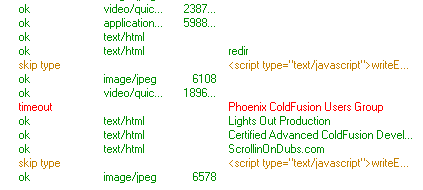
Xenu Link Sleuth is a small windows app that will spider your site and report any broken links or graphics it finds. Back in the day I used an online tool for this that would do the same thing called websitegarage.com. It was later acquired by Microsoft bCentral and now appears to be out of business. This little app is great at what it does though and it can even connect to your site via ftp and report orphaned files based on what it was able to spider. I just used it to check my company’s corporate site and it found a few links that were bad as well as one directory that had a permissions problem.

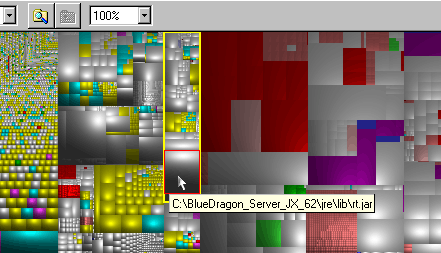
Sequoia View is freeware windows app developed by the CS department of some university in the Netherlands. I needed to do a little spring cleaning on my laptop to free up some hard drive space. When I used to have a Mac there was actually a freeware app called “Spring Cleaning” that was great for giving you a visual overview of how your hard drive space was consumed. It would walk the contents of your drive recursively and produce a bar chart that filled the screen where the left-most column represented the space consumed by your top-level directories, then to the right it drilled further and further until you had as many columns as you had subdirectories on your computer. This worked but produced a report that was VERY difficult to interpret with thin slivers representing each directory. Sequoia View has an ingenious interface that uses what are called “squarified treemaps” or cusion maps (because their shading makes it look like a quilt of cusions knitted together) to represent the contents of your hard drive. It gives a complete visual snapshot of how space is allocated color-coding on filetype and allowing you to see exactly where the problem files are drill down to the directories right from the snapshot view to get rid of them. I found out I had an 800MB pagefile and an 800MB hiberfil.sys which both could be deleted plus a bunch of temp directories that were out of control. Two great little apps I wanted to pass along – nice!

preload preload preload